Create your account
Choose Sign up. Enter an email address and a password of at least 8 characters, or continue with Google.
There is no verification email to wait for: you are signed in straight away.
Step-by-step guides to what Mwalimu AI does today.
Create an account and find your way around.
Choose Sign up. Enter an email address and a password of at least 8 characters, or continue with Google.
There is no verification email to wait for: you are signed in straight away.
After sign-up you answer a few questions in four steps:
You can skip the setup and fill in your profile later in Settings.
Dashboard → Assessment is a longer questionnaire about your classroom and your CBC knowledge. At the end it recommends learning paths to start with.
The menu groups what you can do:
School, Support and Settings are in the menu too.
How a path works and how to earn a certificate.
A path is made of modules, and each module has lessons. A path also has quizzes (a pre-assessment before you start and a final assessment at the end) and an assignment.
Open Dashboard → Learn, choose a path, and work through the lessons in order.
To earn the certificate for a learning path you need all three:
Certificates are free on every plan. Each one has a serial number like MW-XXXXX-XXXXX.
Anyone can check a certificate: open the Verify page of this website and enter the serial number. It tells you whether the certificate is genuine and which path it is for.
If you delete your account, your certificate stays verifiable but no longer shows your name.
On a learning path choose Save for offline. The lessons are stored on that device and open without a connection.
Lessons you complete while offline are kept on the device and sent to your account when you are back online.
The AI Coach and AI tools always need internet.
Change the language in Settings. Lessons appear in Kiswahili where a translation has been published; otherwise they appear in English.
What the AI features do and their limits.
Describe a teaching question or a classroom situation. The Coach replies with suggestions you can ask follow-up questions about.
AI answers can be incomplete or wrong. Check them against your own judgement, the curriculum documents and your school’s guidance.
Dashboard → Tools has eight tools:
The AI Coach and the tools share one daily allowance. It resets at midnight Kenya time. When you reach it, the app tells you and the allowance returns the next day.
The pricing page shows the current allowance for the free and paid plans.
Conversations are saved in your account so you can return to them, and are included in Download My Data.
What you type is sent to an AI service provider to produce the reply. The Privacy Policy lists the providers.
The teacher forum.
Dashboard → Community lets you post a question or idea and reply to others. Your name appears on your posts and replies.
Every post and reply has a flag button. Reporting sends it to our staff to review. Nothing is hidden until a person has looked at it.
Settings, billing, and what you control.
In Settings you can change your language, switch on low-bandwidth mode, change your password, download your data, and manage your plan.
The free plan includes learning paths, certificates, the community, progress tracking and offline lessons. Paid plans raise your daily AI allowance; the School plan adds the head-teacher dashboard. See the pricing page for prices.
Payment is by card on Stripe’s secure checkout page. To cancel, open Settings → Your plan → Cancel my plan. The plan ends straight away and you are not charged again.
If your head teacher is on the School plan, they give you a code. Dashboard → School lets you join with it.
Once you join, your head teacher can see your lessons finished, certificates and when you were last active. They cannot see your journal, AI conversations, messages or contact details. You can leave at any time and they lose access at once.
Settings → Download My Data saves a file of everything we hold about you.
Settings → Delete Account removes your profile, progress, journal, AI conversations, activity and support tickets permanently, and removes your community posts. If you have a paid plan, cancel it first.
How to ask our team for help, follow your request and reply, all inside the app.
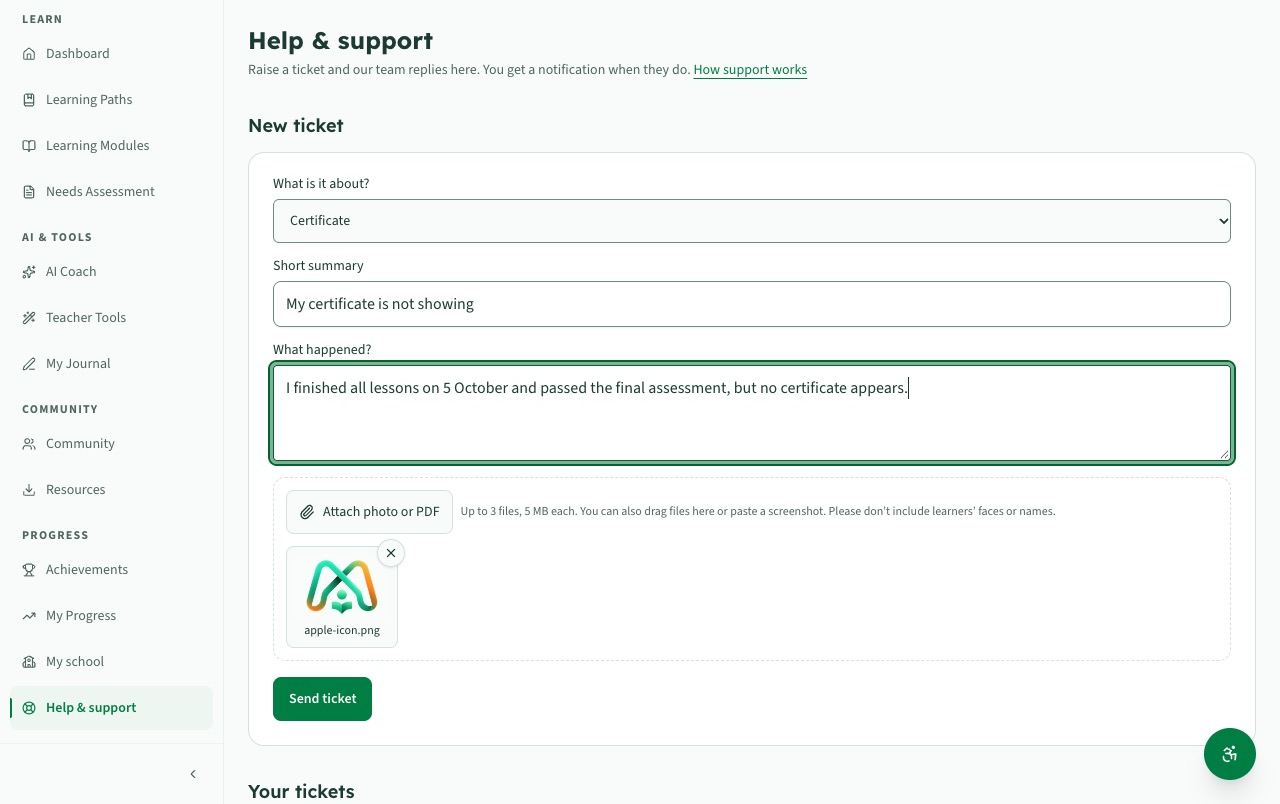
Signed in: go to Dashboard → Support and choose New ticket.
Choose Send ticket. You get a reference number like MW-4F7K2Q. Quote it if you ever need to mention the ticket.
Not signed in, or locked out of your account? Use the Support page on the website instead. You get a private conversation page for the reply, so bookmark it. We do not send email.
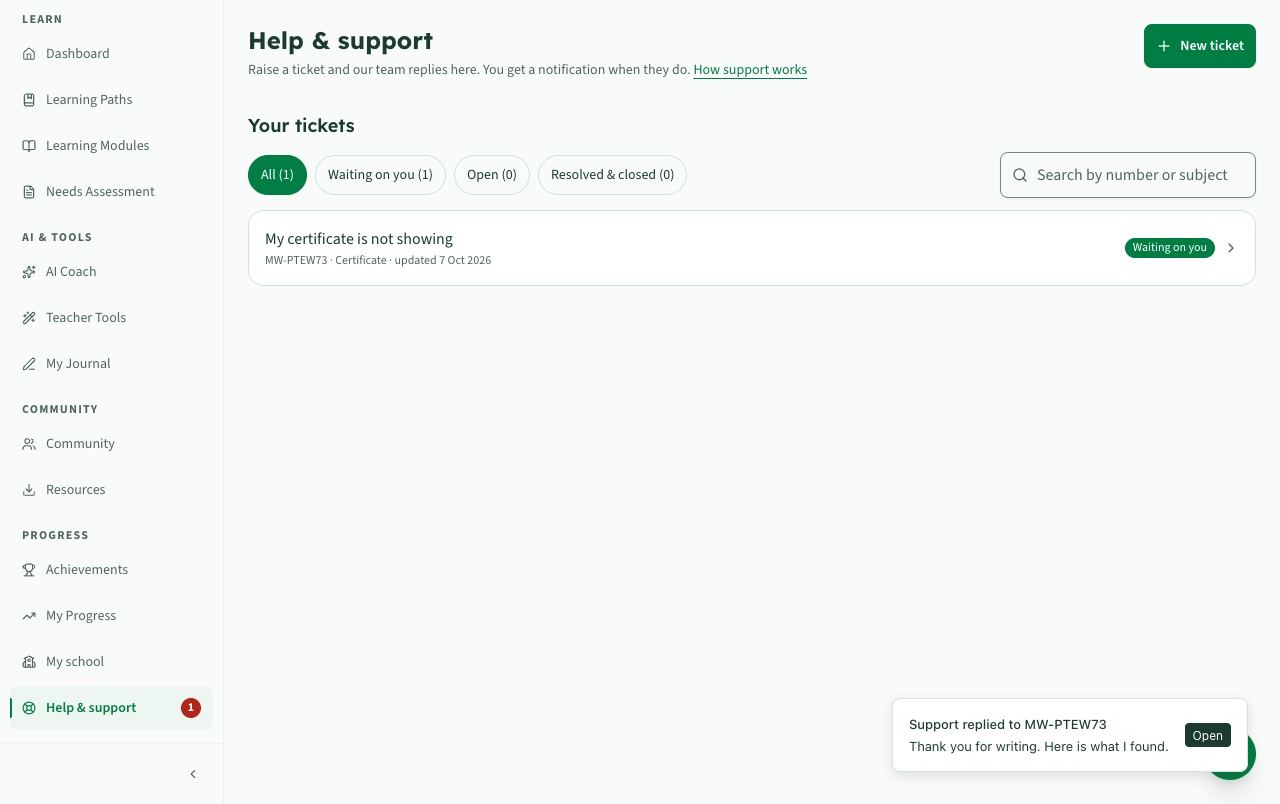
Dashboard → Support lists your tickets. Use the filters (Waiting on you, Open, Resolved & closed) or search by number or subject.
Each ticket shows its status:
When there is news, you see a pop-up in the app, a number on the bell, a red badge on Support, and the count in your browser tab, for example "(1) Mwalimu AI".
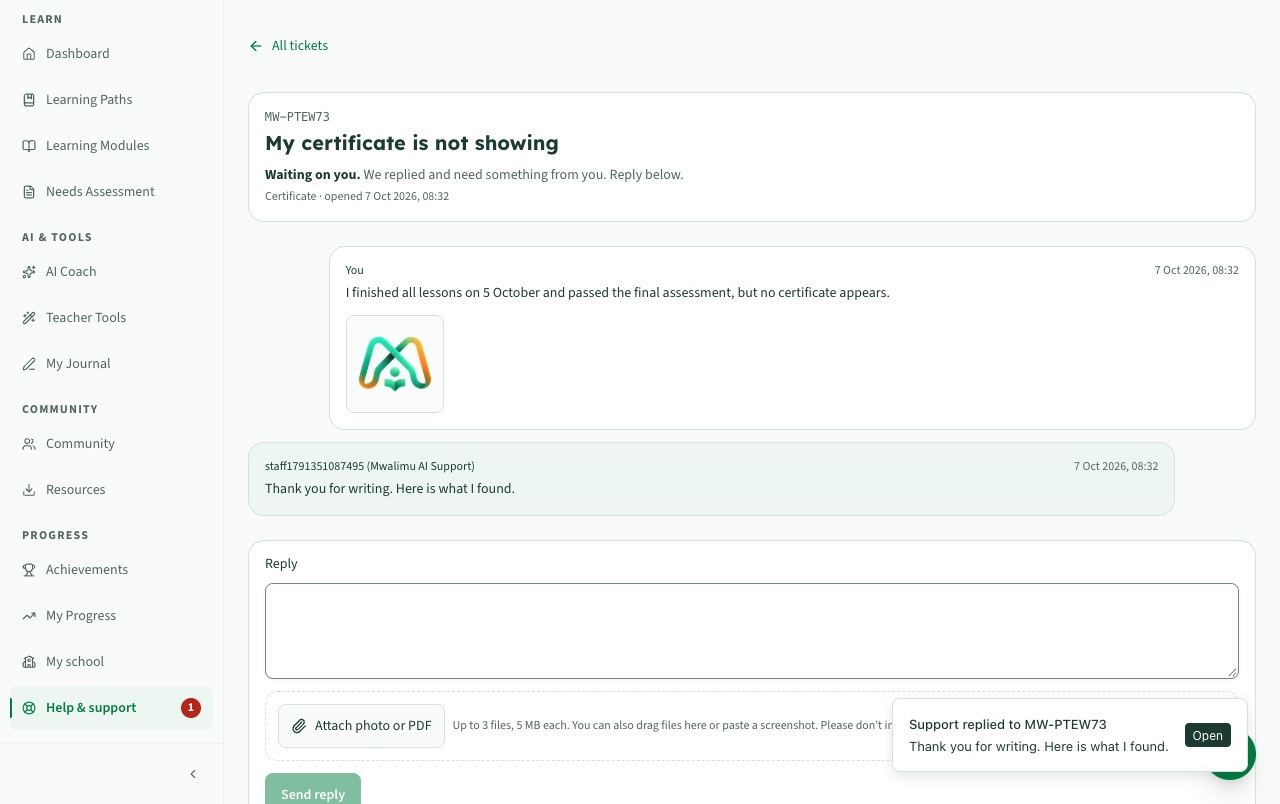
Open the ticket, write in the Reply box, attach files if needed, and choose Send reply. The whole conversation stays on that page.
Only our team marks a ticket resolved or closed. If a closed ticket comes back as a problem, open a new ticket and mention the old number.
How fast will you reply? We aim to reply first within 4 hours for urgent problems, 8 hours for high, 24 hours for normal and 3 days for low. Account and payment problems are treated as high.
Will I get an email? No. Replies appear in the app (and on your private page if you wrote without an account).
I lost my private conversation link. Write again from the Support page using the same email address. If you later sign in with Google using that address, your conversations move into your account automatically.
Can I add a file after sending? Yes: attach it to a reply.
Who can read my ticket? You and our support team. Staff can add internal notes you do not see; they are only for working on your request.
Common problems and what to do.
If you signed up with Google, use Continue with Google. If you signed up with a password and forgot it, choose Forgot password on the login page. We do not send password emails: write to our team there, and they give you a temporary password on a private page. Sign in with it, then change it in Settings.
If it still fails, send us a message from the Support page.
Progress is saved to your account when you are online. If you were offline it is kept on your device and saved when the connection returns, so open the app online once.
The daily allowance resets at midnight Kenya time. A paid plan raises it.
Signed in: Dashboard → Support lets you raise a ticket and see replies in the app.
Not signed in: use the Contact or Support page. After you send, you get a private conversation page where our reply appears. Bookmark it: we do not send email. If you later sign in, you can add the conversation to your account.